NordVPN Windows: How to Download, Install, and Use the App
Learn how to install NordVPN on Windows, connect securely, and troubleshoot common problems.
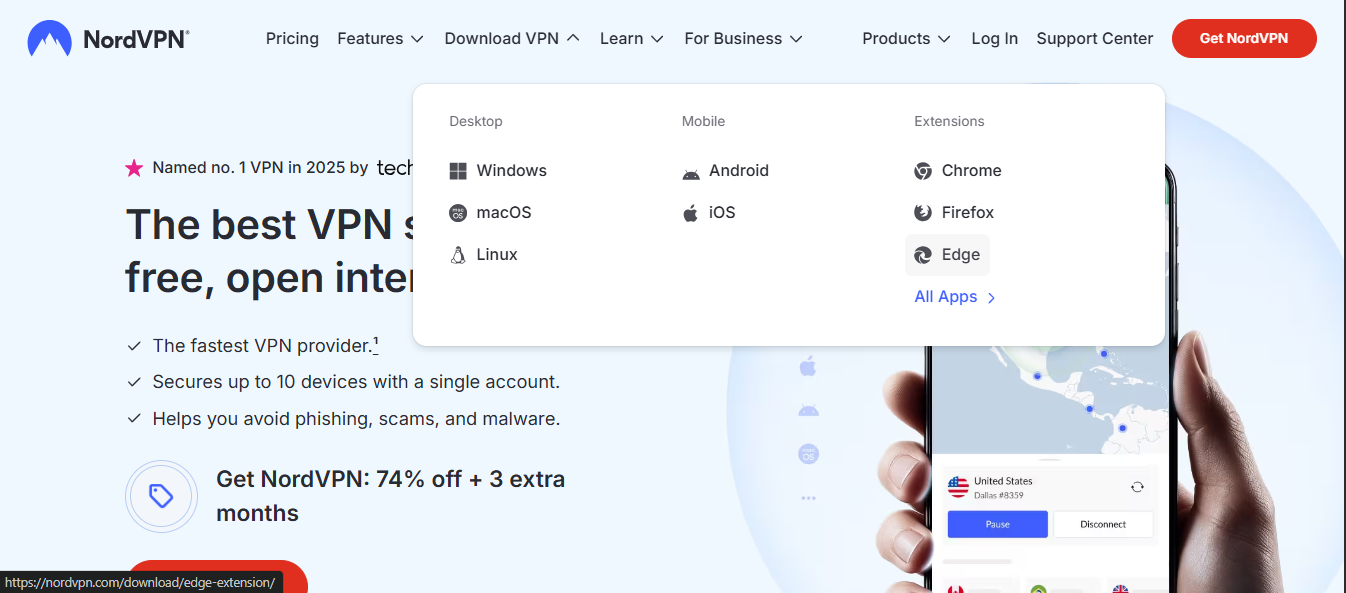
NordVPN works on Windows PCs, and the official app is designed for Windows 10 (64-bit) and Windows 11. To get started, download the installer from NordVPN’s Windows download page, install the app, and sign in with your Nord Account. You’ll need an active internet connection for setup and login.
Editor's pick: NordVPN — fast, secure VPN — Strong encryption, a no-logs policy and apps for every device. 30-day money-back guarantee. Get NordVPN →
NordVPN Windows app features and supported options
| Option | What it does | Availability | Useful when |
|---|---|---|---|
| Quick Connect | Connects to a recommended server | Supported | You want a fast setup |
| Country list | Lets you choose a country | Supported | You need a specific location |
| Map view | Lets you select a server by map | Supported | You prefer a visual choice |
| Specialty servers | Offers servers for particular uses | Supported | You need a specialized connection |
| Threat Protection | Helps block online threats | Supported | You want added browsing protection |
| Split tunneling | Selects which apps use the VPN | Supported | Some apps should bypass the VPN |
| Kill Switch | Blocks internet access if the VPN drops | Supported | You want to avoid an unprotected connection |
| Auto-connect | Connects automatically under chosen conditions | Supported | You want the VPN to start without manual steps |
Compiled November 2026; check the provider's site for current details.
| VPN | Obfuscation | From / month | Plan | Free plan | Refund | Alipay | UnionPay | Crypto | Website opens in China | Trustpilot | |
|---|---|---|---|---|---|---|---|---|---|---|---|
 NordVPN | Turn on manually Obfuscated Servers / NordWhisper | $3.49/mo | 27 months: $94.23 | No | 30 days | ? | ✗ | ✓ | ✓ | ✗ Blocked | 4.2/5 (51,628 reviews) |
 ZoogVPN | Turn on manually Shadow | $2.49/mo | 27 months: $59.99 | Yes | 7 days | ✓ | ✓ | ✓ | ✓ | Official site blocked; our special link opens (4.4 s) | 4.2/5 (195 reviews) |
 ExpressVPN | ✓ On by default all servers | $3.00/mo | 28 months: $84 | No | 30 days | ✗ | ✗ | ✓ | ✗ | ✗ Blocked | 4.4/5 (29,706 reviews) |
 Surfshark | ✓ On by default Camouflage, with OpenVPN | See site | See site | No | 30 days | ✗ | ✗ | ✗ | ✓ | ✗ Blocked | 4.3/5 (31,823 reviews) |
 Proton VPN | Turn on manually Stealth, free plan too | $2.99/mo | 12 months: $35.88 | Yes | 30 days | ✗ | ✗ | ✗ | ✓ | ✗ Blocked | 2.1/5 (1,040 reviews) |
 Astrill VPN | Turn on manually StealthVPN / OpenWeb | $12.50/mo | 24 months: $300 | No | See site | ✗ | ✗ | ✗ | ✓ | ✗ Blocked | 1.3/5 (110 reviews) |
 Private Internet Access | Turn on manually Shadowsocks, OpenVPN only | $2.03/mo | 40 months: $81.2 | No | 30 days | ✗ | ✗ | ✗ | ✗ | ✗ Blocked | 4.2/5 (11,033 reviews) |
 CyberGhost | Turn on manually selected servers | $2.19/mo | 28 months: $61.32 | No | 45 days | ✗ | ✗ | ✗ | ✓ | ✗ Blocked | 4.0/5 (24,178 reviews) |
 PureVPN | Turn on manually switch to OpenVPN | $1.69/mo | 60 months: $101.55 | No | 31 days | ? | ? | ✗ | ✓ | ✗ Blocked | 4.4/5 (17,994 reviews) |
 AdGuard VPN | ✓ On by default TrustTunnel | $2.99/mo | 24 months: $71.76 | Yes | 30 days | ✓ | ✗ | ✓ | ✓ | Official site blocked; our special link opens (3.7 s) | 4.3/5 (290 reviews) |
 Mullvad | Turn on manually QUIC / Shadowsocks / LWO | $5.61/mo | €5/mo | No | 14 days | ✗ | ✗ | ✗ | ✓ | ✗ Blocked | 3.2/5 (192 reviews) |
 Windscribe | Turn on manually Stealth / WStunnel | $5.75/mo | 12 months: $69 | Yes | See site | ✗ | ✗ | ✗ | ✓ | ✗ Blocked | 4.7/5 (13,355 reviews) |
 StrongVPN | Turn on manually Scramble, OpenVPN TCP | See site | See site | No | 30 days | ✓ | ✗ | ✗ | ✗ | ✗ Blocked | 4.4/5 (2,695 reviews) |
 LightXtreme 闪连 | Not listed | $7.08/mo | 12 months: $84.99 | Yes | 30 days | ✓ | ✓ | ✓ | ✓ | ✓ Yes (3.5 s) | No page |
Prices checked 2026-11-10 on each vendor's pricing page (cheapest long plan, USD). Check the vendor's checkout for the final price.
Obfuscation checked 2026-11-14 on each vendor's site and help center: "on by default" = nothing to set; "turn on manually" = switch protocol or mode in settings; "not listed" = the vendor describes no obfuscation.
Payment methods checked 2026-11-10 on each vendor's payment pages: all 14 take cards and PayPal; ✗ = not listed, ? = the vendor's own pages disagree.
China access: whether the official website opens from mainland China networks (tests the website only, not the VPN connection). Last checked 2026-11-18 01:02 Beijing time.
Trustpilot score and review count checked 2026-11-10.
How to download NordVPN for Windows
Use NordVPN’s official website to get the Windows installer. This helps ensure you’re installing the authentic app and not an altered or outdated copy from another source.
Before downloading, check that your computer meets the basic requirements:
- A PC running Windows 10 (64-bit) or Windows 11.
- A working internet connection.
- A Nord Account to sign in. If you don’t have one, you’ll need to create an account.
Once the installer has downloaded, open it and follow the on-screen instructions. When installation is complete, launch NordVPN and log in.
How to connect with the Windows app
After you sign in, choose a VPN server in the app and connect. You can select a location yourself or use the app’s suggested connection option. The exact controls may vary slightly depending on the installed app version. Microsoft Edge Secure Network VPN Reviews: Is It Safe and Worth Using?
When connected, your internet traffic is routed through the VPN server. This can help protect traffic on the connection and change the IP address visible to websites. A VPN does not make you completely anonymous, and it does not replace other security practices such as using strong passwords and keeping Windows up to date.
For a straightforward first connection:
- Open the NordVPN app.
- Sign in with your Nord Account.
- Choose a server or use the app’s suggested option.
- Wait for the app to confirm that you’re connected.
- Open a browser or other app and use the internet as usual.
If you’re using a VPN for work or a particular app, check that the connection is active before using that service.
What can you do with NordVPN on Windows?
A Windows VPN app can be useful for several everyday tasks, though results depend on your network, selected server, and the websites or services you use. Nord VPN in China: Does It Work and How to Prepare
| Need | How NordVPN may help | Keep in mind |
|---|---|---|
| Browsing on public Wi-Fi | Encrypts traffic between your device and the VPN server | Use secure websites and keep your device protected |
| Changing your apparent IP address | Websites may see the VPN server’s IP instead of your usual one | Some services may restrict or verify VPN connections |
| Streaming or browsing while travelling | Lets you connect through a server location | Access depends on the service’s rules and may change |
| Separating app traffic | Split tunneling, if available in your app, can route selected apps differently | Review the settings carefully so the right apps use the VPN |
Some versions and plans may offer additional features. Check the app and NordVPN’s current product information for the options available to you. Features can change over time.
Troubleshooting NordVPN on Windows
If NordVPN won’t connect or stops working, start with the simplest checks:
- Confirm that your internet works when the VPN is disconnected.
- Close and reopen the NordVPN app.
- Check for app updates and install the latest available version.
- Try a different server.
- Restart your PC and try again.
- Review any firewall, antivirus, or network settings that could interfere with VPN connections.
If the app connects but a particular website or streaming service does not work, the service may be restricting VPN traffic. Try another server or disconnect from the VPN to determine whether the issue is related to the VPN connection. A service’s availability can vary, so a VPN cannot guarantee access to every site or catalogue.
Why might NordVPN not work on Windows 11?
First, make sure the app is compatible with your Windows version and is up to date. Then test your regular internet connection, restart the app, and try another server. If the problem continues, consult NordVPN support for current troubleshooting steps rather than changing unfamiliar Windows network settings. Does Microsoft Edge Have VPN? What Edge Secure Network Does
Choosing how to connect with NordVPN on Windows
| Connection option | User input | Best suited for | Main consideration |
|---|---|---|---|
| Quick Connect | Minimal | Everyday use | NordVPN selects the server |
| Search for a country | Country selection | Connecting through a chosen country | Does not target a particular city |
| Choose from the map | Map selection | Visual browsing of locations | Requires selecting a location |
| Select a specialty server | Server type selection | A particular connection purpose | Availability depends on the server type |
| Use auto-connect | Set connection preferences | Automatic startup connections | Configure preferences before relying on it |
| Try another server | Manual server selection | Troubleshooting a slow or failed connection | A different server may work better |
| Check app settings | Review or adjust settings | Resolving connection or startup issues | The right setting depends on the problem |
| Reinstall the app | Remove and install again | Persistent app problems | Use if simpler troubleshooting does not help |
Compiled November 2026; check the provider's site for current details.
Is the NordVPN Windows app a good fit?
NordVPN for Windows is a practical option if you want to manage a VPN connection through a desktop app rather than configure every setting manually. The official Windows app provides a direct way to sign in, select a server, and connect.
It may be less suitable if you need a VPN that works on an older Windows version, cannot install desktop software, or must follow specific workplace network rules. Check compatibility and any relevant policies before installing it. How to Enable VPN in Edge: Turn On Microsoft Edge Secure Network
Recommendation
For a Windows 10 (64-bit) or Windows 11 PC, download NordVPN from its official Windows page, sign in, and test a connection before relying on it. If you encounter problems, verify your internet connection and app version first, then try another server or contact NordVPN support.