Urban VPN Extension Edge: How to Install and Use It
Learn how to find, install, and use the Urban VPN extension for Microsoft Edge, plus what to consider before relying on it.
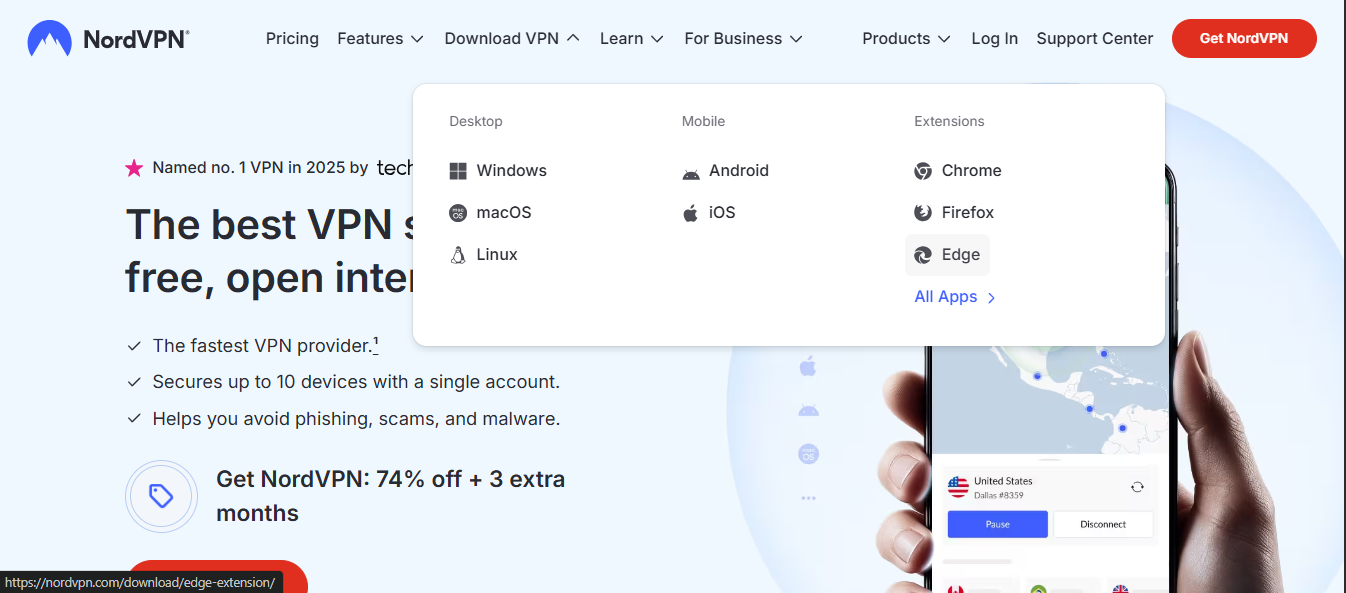
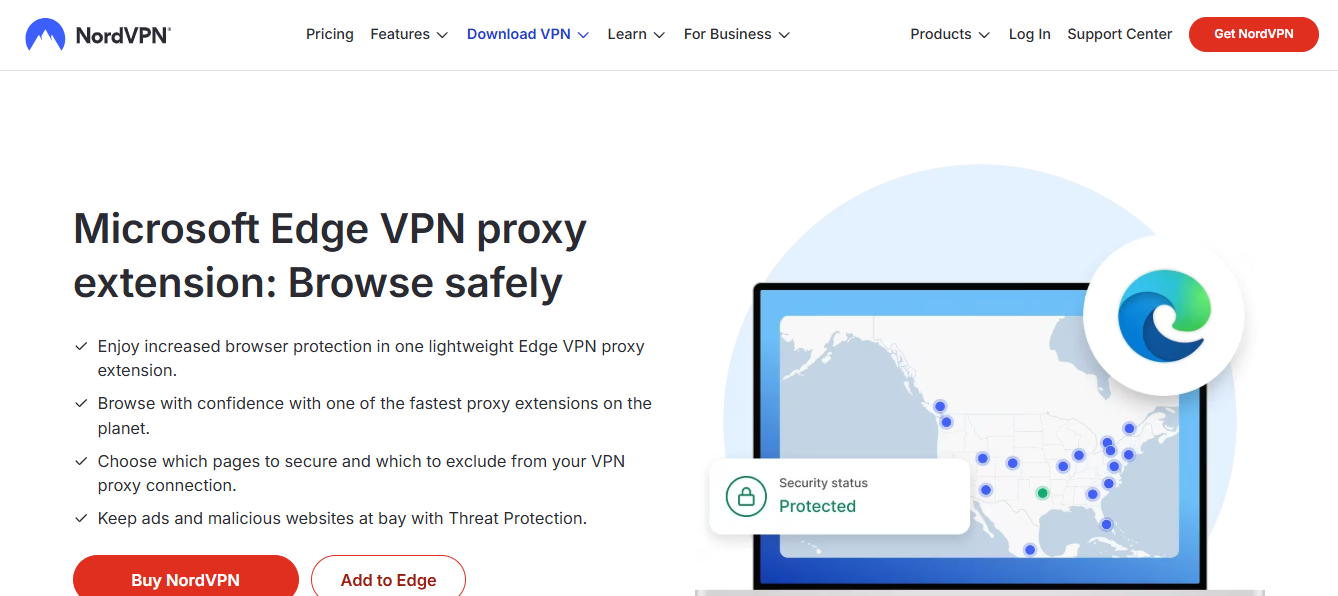
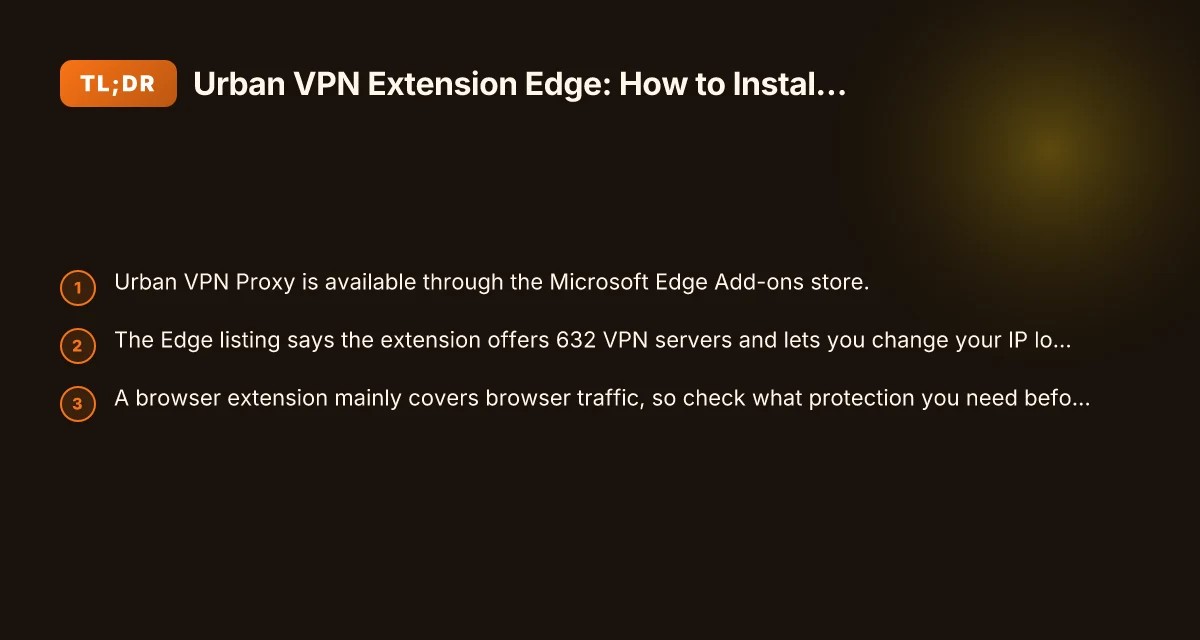
If you’re looking for the Urban VPN extension for Edge, you can find Urban VPN Proxy in the Microsoft Edge Add-ons store. The listing describes it as a free proxy extension that lets you change your IP location and connect to any of its 632 VPN servers. Install it from Edge’s official add-ons store, then choose a location and connect.
Editor's pick: NordVPN — fast, secure VPN — Strong encryption, a no-logs policy and apps for every device. 30-day money-back guarantee. Get NordVPN →
Quick comparison of connection options
| Option | Best for | Setup | Location choice | Main consideration |
|---|---|---|---|---|
| Urban VPN Edge extension | Quick browser use | Install from Edge Add-ons | Choose a listed location | Primarily affects browser traffic |
| Edge InPrivate window | A separate browsing session | Open an InPrivate window | No location change | Does not provide a VPN connection |
| Another browser VPN extension | Comparing browser tools | Install its Edge-compatible extension | Depends on the provider | Check privacy terms and features |
| Desktop VPN app | Device-wide VPN coverage | Install the provider’s app | Depends on the provider | May cover more than browser traffic |
| No VPN | Basic browsing without a VPN | No setup | Your usual connection | No VPN location change |
Compiled November 2026; check the provider's site for current details.
| VPN | Obfuscation | From / month | Plan | Free plan | Refund | Alipay | UnionPay | Crypto | Website opens in China | Trustpilot | |
|---|---|---|---|---|---|---|---|---|---|---|---|
 ZoogVPN | Turn on manually Shadow | $2.49/mo | 27 months: $59.99 | Yes | 7 days | ✓ | ✓ | ✓ | ✓ | Official site blocked; our special link opens (4.4 s) | 4.2/5 (195 reviews) |
 NordVPN | Turn on manually Obfuscated Servers / NordWhisper | $3.49/mo | 27 months: $94.23 | No | 30 days | ? | ✗ | ✓ | ✓ | ✗ Blocked | 4.2/5 (51,628 reviews) |
 ExpressVPN | ✓ On by default all servers | $3.00/mo | 28 months: $84 | No | 30 days | ✗ | ✗ | ✓ | ✗ | ✗ Blocked | 4.4/5 (29,706 reviews) |
 Surfshark | ✓ On by default Camouflage, with OpenVPN | See site | See site | No | 30 days | ✗ | ✗ | ✗ | ✓ | ✗ Blocked | 4.3/5 (31,823 reviews) |
 Proton VPN | Turn on manually Stealth, free plan too | $2.99/mo | 12 months: $35.88 | Yes | 30 days | ✗ | ✗ | ✗ | ✓ | ✗ Blocked | 2.1/5 (1,040 reviews) |
 Astrill VPN | Turn on manually StealthVPN / OpenWeb | $12.50/mo | 24 months: $300 | No | See site | ✗ | ✗ | ✗ | ✓ | ✗ Blocked | 1.3/5 (110 reviews) |
 Private Internet Access | Turn on manually Shadowsocks, OpenVPN only | $2.03/mo | 40 months: $81.2 | No | 30 days | ✗ | ✗ | ✗ | ✗ | ✗ Blocked | 4.2/5 (11,033 reviews) |
 CyberGhost | Turn on manually selected servers | $2.19/mo | 28 months: $61.32 | No | 45 days | ✗ | ✗ | ✗ | ✓ | ✗ Blocked | 4.0/5 (24,178 reviews) |
 PureVPN | Turn on manually switch to OpenVPN | $1.69/mo | 60 months: $101.55 | No | 31 days | ? | ? | ✗ | ✓ | ✗ Blocked | 4.4/5 (17,994 reviews) |
 AdGuard VPN | ✓ On by default TrustTunnel | $2.99/mo | 24 months: $71.76 | Yes | 30 days | ✓ | ✗ | ✓ | ✓ | Official site blocked; our special link opens (3.7 s) | 4.3/5 (290 reviews) |
 Mullvad | Turn on manually QUIC / Shadowsocks / LWO | $5.61/mo | €5/mo | No | 14 days | ✗ | ✗ | ✗ | ✓ | ✗ Blocked | 3.2/5 (192 reviews) |
 Windscribe | Turn on manually Stealth / WStunnel | $5.75/mo | 12 months: $69 | Yes | See site | ✗ | ✗ | ✗ | ✓ | ✗ Blocked | 4.7/5 (13,355 reviews) |
 StrongVPN | Turn on manually Scramble, OpenVPN TCP | See site | See site | No | 30 days | ✓ | ✗ | ✗ | ✗ | ✗ Blocked | 4.4/5 (2,695 reviews) |
 LightXtreme 闪连 | Not listed | $7.08/mo | 12 months: $84.99 | Yes | 30 days | ✓ | ✓ | ✓ | ✓ | ✓ Yes (3.5 s) | No page |
Prices checked 2026-11-10 on each vendor's pricing page (cheapest long plan, USD). Check the vendor's checkout for the final price.
Obfuscation checked 2026-11-14 on each vendor's site and help center: "on by default" = nothing to set; "turn on manually" = switch protocol or mode in settings; "not listed" = the vendor describes no obfuscation.
Payment methods checked 2026-11-10 on each vendor's payment pages: all 14 take cards and PayPal; ✗ = not listed, ? = the vendor's own pages disagree.
China access: whether the official website opens from mainland China networks (tests the website only, not the VPN connection). Last checked 2026-11-18 01:02 Beijing time.
Trustpilot score and review count checked 2026-11-10.
What the Urban VPN Edge extension does
Urban VPN Proxy is a browser extension designed to route supported browser traffic through a selected server. The advertised purpose is to change the IP location websites see and access content that may be unavailable from your usual location.
Urban VPN’s product page also promotes swift activation and unlimited bandwidth for its browser extension. Those are product claims, not a guarantee that every connection will be equally fast or that every website will work. Performance can vary with the chosen server, your internet connection, and the service you’re accessing.
A browser extension is not necessarily the same as a full-device VPN application. If you need to cover traffic from apps outside Edge, review whether Urban VPN’s PC or laptop product is appropriate rather than assuming the browser add-on protects everything on your computer.
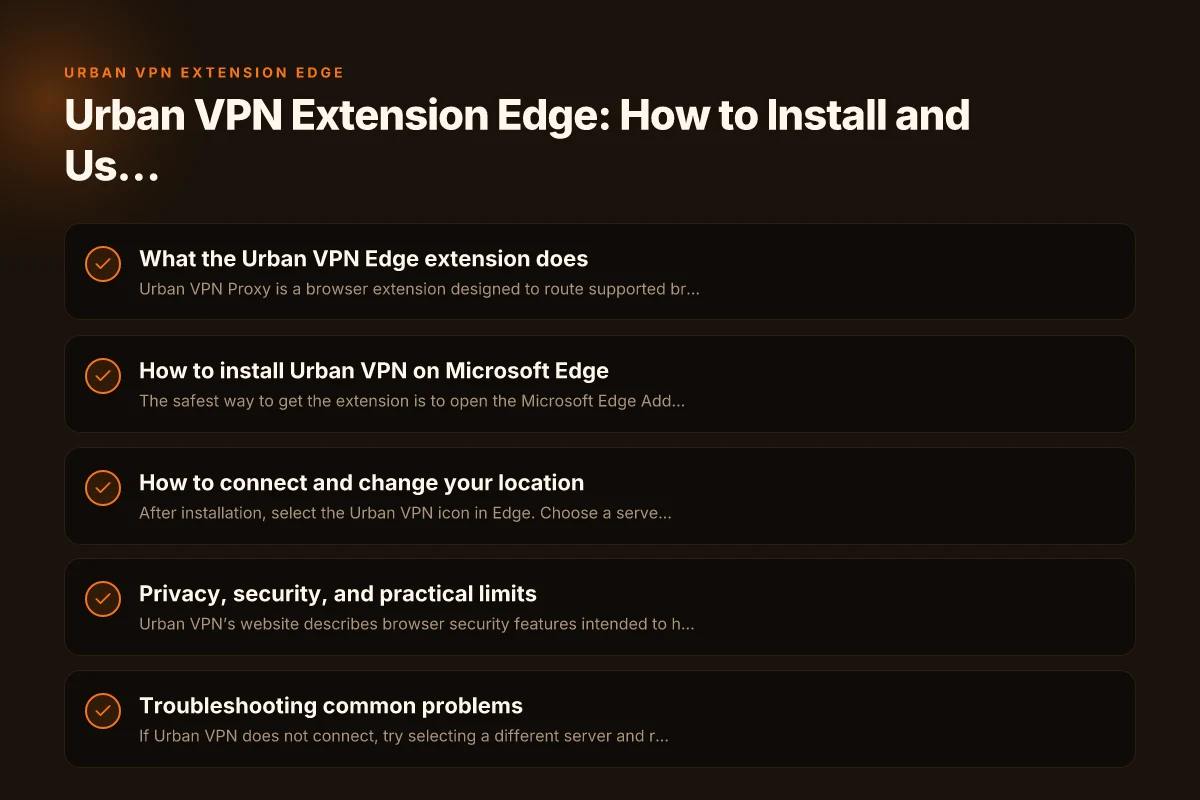
How to install Urban VPN on Microsoft Edge
The safest way to get the extension is to open the Microsoft Edge Add-ons store and search for Urban VPN Proxy. Confirm the listing and publisher before installing, since similarly named extensions can appear in searches. F5 VPN: What It Is, How It Works, and When to Use It
Installation steps
- Open Microsoft Edge.
- Go to the Microsoft Edge Add-ons store.
- Search for Urban VPN Proxy.
- Open the Urban VPN listing and review its details and permissions.
- Select the option to add the extension to Edge and confirm the browser prompt.
- Open the extension from Edge’s toolbar, choose a server location, and connect.
If the extension icon is not visible after installation, check Edge’s extensions menu and pin it to the toolbar if that option is available. You can also return to the extensions menu to disconnect or manage the add-on.
How to connect and change your location
After installation, select the Urban VPN icon in Edge. Choose a server location from the available list and start the connection. When connected, the extension is intended to make websites see the selected server’s IP location rather than your usual one.
To switch locations, disconnect if necessary, choose another server, and reconnect. If a page still shows your previous location, refresh it or open a new tab. Some sites use additional signals, such as account settings or saved browser data, so changing an IP address alone may not change all location-based results.
| Option | What it is intended to cover | Best suited to |
|---|---|---|
| Urban VPN Proxy for Edge | Supported traffic within the browser | Changing the apparent IP location for browser activity |
| Urban VPN PC or laptop product | A desktop VPN option advertised for Windows devices | People seeking coverage beyond the browser |
The table is a general distinction between a browser extension and a desktop product. Check Urban VPN’s current product details to confirm which option fits your device and needs. AXGATE VPN Client: What It Is, How It Works, and How to Use It
Installation and connection decision guide
| Step or choice | What to do | What to check | If it does not work |
|---|---|---|---|
| Find the extension | Search Edge Add-ons for Urban VPN | Confirm the product name | Check that Edge is up to date |
| Add to Edge | Select the install option | Review requested permissions | Retry from the official add-ons listing |
| Open the extension | Select its toolbar icon | Sign in or follow its prompts, if shown | Check whether the extension is enabled |
| Connect | Choose a listed location and connect | Look for a connected status | Try disconnecting and reconnecting |
| Change location | Disconnect, then select another location | Confirm the new selection | Reopen the location list |
| Test browsing | Load a site in a new tab | Check whether the connection works | Try another site or restart Edge |
Compiled November 2026; check the provider's site for current details.
Privacy, security, and practical limits
Urban VPN’s website describes browser security features intended to help shield browsing from phishing attempts, malware, and intrusive ads. Treat these as the provider’s stated features, and review the extension’s current listing and privacy information before enabling it.
A VPN or proxy can change the IP address websites see, but it does not make you anonymous or remove every online risk. Keep your browser and operating system updated, use unique passwords, and be cautious with unfamiliar links and downloads. For sensitive activity, understand what data the service collects and how it handles connection information. SoftEther VPN: What It Is, How It Works, and Whether to Use It
Keep these points in mind:
- Check permissions: Review what the extension requests before installation.
- Understand its scope: A browser add-on may not route traffic from other apps.
- Expect variation: Speeds and access can differ by server and website.
- Follow site rules: A changed IP location does not override a service’s terms or regional restrictions.
- Verify connection status: Confirm the extension shows that it is connected before relying on it.
Troubleshooting common problems
If Urban VPN does not connect, try selecting a different server and restarting the connection. Check that Edge is up to date, and temporarily disable conflicting extensions to see whether one is interfering.
If a website does not load or continues to display your usual region, refresh the page or try a new tab. Some services may block VPN or proxy connections, while others may rely on information beyond your IP address. If the issue continues, consult the extension’s current support information rather than installing an unofficial copy.
Privacy and practical limits checklist Proton VPN Free: What You Get, Limitations, and Who It Suits
| Question | What to consider | Practical check |
|---|---|---|
| Does it change browser location? | It offers location selection for the connection | Check the selected location in the extension |
| Does it cover every app? | A browser extension may not cover device-wide traffic | Use a desktop VPN app if broader coverage is needed |
| Is browsing fully anonymous? | A VPN does not guarantee anonymity | Review account, browser, and website privacy practices |
| What data is handled? | Practices depend on the provider’s terms and policies | Read the current privacy policy |
| Are permissions important? | Extension permissions affect browser access | Review permissions before installation |
| Can performance vary? | Connection speed and reliability may vary | Test the connection for your usual activities |
| What if sites still identify you? | Cookies and account sign-ins can reveal identity | Review cookies and logged-in sessions |
| When should you troubleshoot? | Connection or location changes may not take effect immediately | Reconnect, check the extension, and restart Edge if needed |
Compiled November 2026; check the provider's site for current details.
Recommendation
For a straightforward way to change the apparent IP location of browser traffic in Edge, Urban VPN Proxy is available from Microsoft Edge Add-ons and advertises 632 servers. Install it from the official store, review its permissions and privacy details, and test it with non-sensitive browsing first. If you need VPN coverage for your whole computer, compare the desktop option instead of assuming the Edge extension covers every app.