Windows VPN: How to Set Up and Choose the Right Option
Learn what Windows VPN settings do, how to connect, and how to choose a VPN service for your PC.
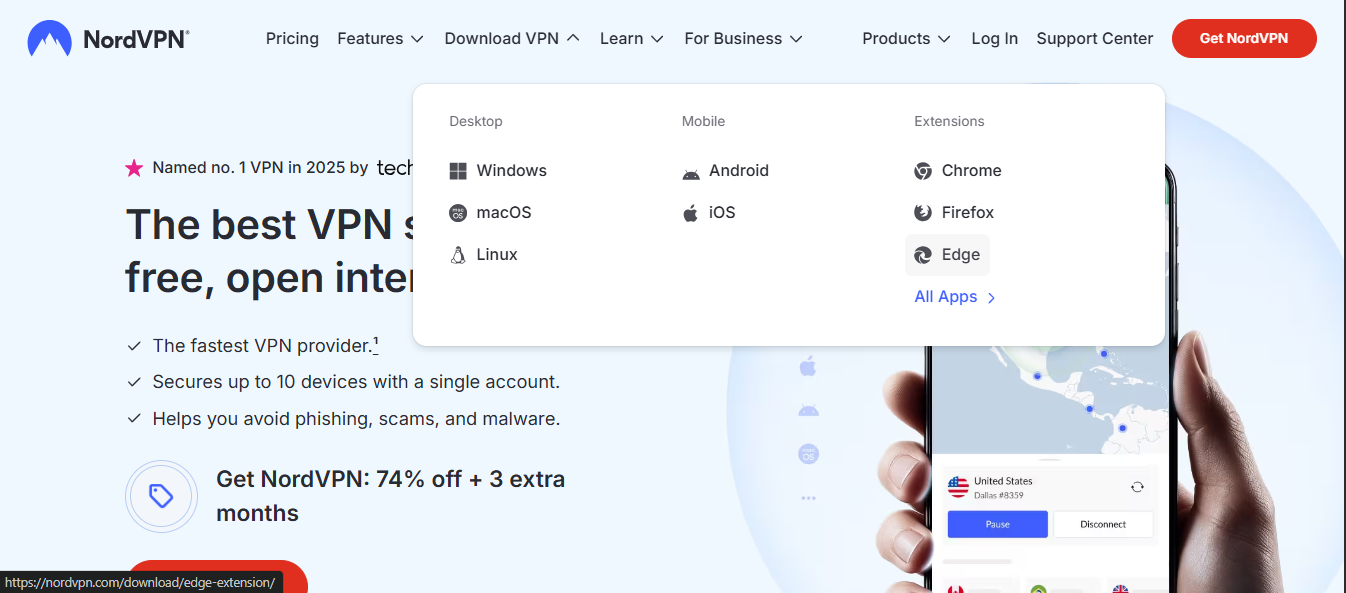
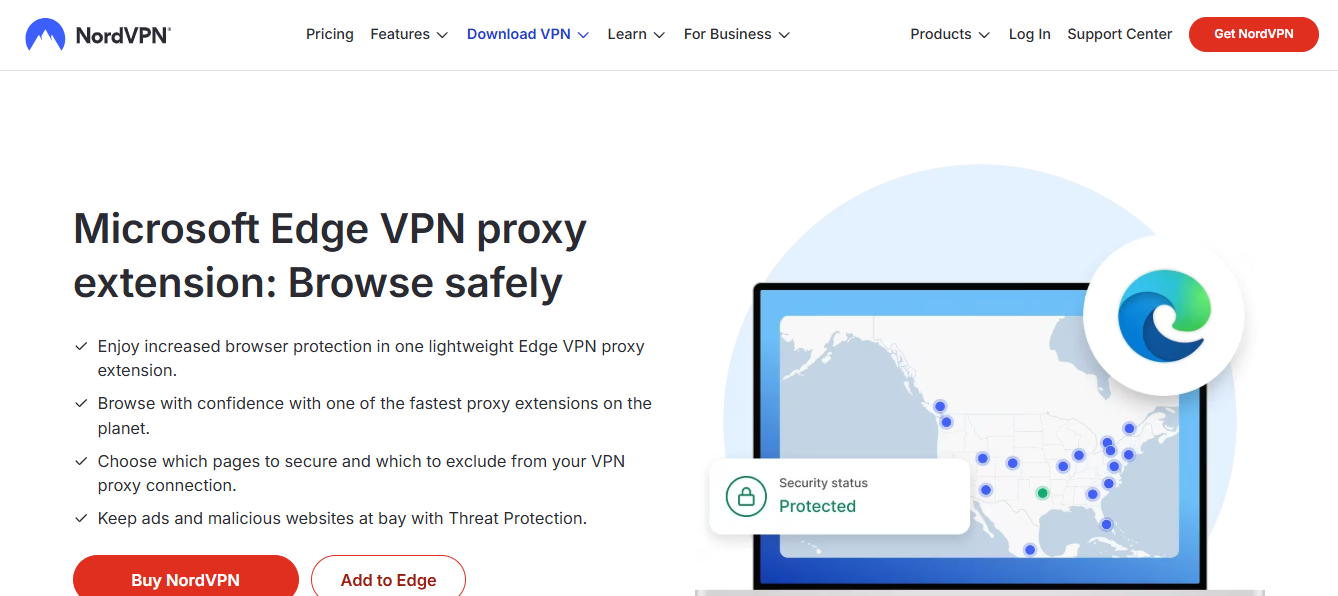
A Windows VPN can help protect your internet connection and give you access to a work, school, or VPN-provider network. Windows includes tools to configure a VPN connection, but you generally need a VPN service or network administrator to supply the connection details. You can connect through Windows Settings or use an app provided by your VPN service.
Editor's pick: NordVPN — fast, secure VPN — Strong encryption, a no-logs policy and apps for every device. 30-day money-back guarantee. Get NordVPN →
Compare Windows VPN connection options
| Option | Best for | Setup location | VPN service required? | Key consideration |
|---|---|---|---|---|
| Windows built-in VPN client | Connecting to a work or personal VPN | Settings | Yes | Requires server and sign-in details |
| VPN provider’s Windows app | Everyday VPN use | Provider’s app | Yes | Provider handles connection setup |
| Work VPN profile | Accessing company resources | Settings or work app | Yes | Follow your organization’s instructions |
| Manual VPN connection | Using provider-supplied settings | Settings | Yes | Enter connection details yourself |
| No VPN connection | Ordinary internet access | None | No | Does not create a VPN tunnel |
Compiled November 2026; check the provider's site for current details.
| VPN | Obfuscation | From / month | Plan | Free plan | Refund | Alipay | UnionPay | Crypto | Website opens in China | Trustpilot | |
|---|---|---|---|---|---|---|---|---|---|---|---|
 Proton VPN | Turn on manually Stealth, free plan too | $2.99/mo | 12 months: $35.88 | Yes | 30 days | ✗ | ✗ | ✗ | ✓ | ✗ Blocked | 2.1/5 (1,040 reviews) |
 ZoogVPN | Turn on manually Shadow | $2.49/mo | 27 months: $59.99 | Yes | 7 days | ✓ | ✓ | ✓ | ✓ | Official site blocked; our special link opens (4.4 s) | 4.2/5 (195 reviews) |
 NordVPN | Turn on manually Obfuscated Servers / NordWhisper | $3.49/mo | 27 months: $94.23 | No | 30 days | ? | ✗ | ✓ | ✓ | ✗ Blocked | 4.2/5 (51,628 reviews) |
 ExpressVPN | ✓ On by default all servers | $3.00/mo | 28 months: $84 | No | 30 days | ✗ | ✗ | ✓ | ✗ | ✗ Blocked | 4.4/5 (29,706 reviews) |
 Surfshark | ✓ On by default Camouflage, with OpenVPN | See site | See site | No | 30 days | ✗ | ✗ | ✗ | ✓ | ✗ Blocked | 4.3/5 (31,823 reviews) |
 Astrill VPN | Turn on manually StealthVPN / OpenWeb | $12.50/mo | 24 months: $300 | No | See site | ✗ | ✗ | ✗ | ✓ | ✗ Blocked | 1.3/5 (110 reviews) |
 Private Internet Access | Turn on manually Shadowsocks, OpenVPN only | $2.03/mo | 40 months: $81.2 | No | 30 days | ✗ | ✗ | ✗ | ✗ | ✗ Blocked | 4.2/5 (11,033 reviews) |
 CyberGhost | Turn on manually selected servers | $2.19/mo | 28 months: $61.32 | No | 45 days | ✗ | ✗ | ✗ | ✓ | ✗ Blocked | 4.0/5 (24,178 reviews) |
 PureVPN | Turn on manually switch to OpenVPN | $1.69/mo | 60 months: $101.55 | No | 31 days | ? | ? | ✗ | ✓ | ✗ Blocked | 4.4/5 (17,994 reviews) |
 AdGuard VPN | ✓ On by default TrustTunnel | $2.99/mo | 24 months: $71.76 | Yes | 30 days | ✓ | ✗ | ✓ | ✓ | Official site blocked; our special link opens (3.7 s) | 4.3/5 (290 reviews) |
 Mullvad | Turn on manually QUIC / Shadowsocks / LWO | $5.61/mo | €5/mo | No | 14 days | ✗ | ✗ | ✗ | ✓ | ✗ Blocked | 3.2/5 (192 reviews) |
 Windscribe | Turn on manually Stealth / WStunnel | $5.75/mo | 12 months: $69 | Yes | See site | ✗ | ✗ | ✗ | ✓ | ✗ Blocked | 4.7/5 (13,355 reviews) |
 StrongVPN | Turn on manually Scramble, OpenVPN TCP | See site | See site | No | 30 days | ✓ | ✗ | ✗ | ✗ | ✗ Blocked | 4.4/5 (2,695 reviews) |
 LightXtreme 闪连 | Not listed | $7.08/mo | 12 months: $84.99 | Yes | 30 days | ✓ | ✓ | ✓ | ✓ | ✓ Yes (3.5 s) | No page |
Prices checked 2026-11-10 on each vendor's pricing page (cheapest long plan, USD). Check the vendor's checkout for the final price.
Obfuscation checked 2026-11-14 on each vendor's site and help center: "on by default" = nothing to set; "turn on manually" = switch protocol or mode in settings; "not listed" = the vendor describes no obfuscation.
Payment methods checked 2026-11-10 on each vendor's payment pages: all 14 take cards and PayPal; ✗ = not listed, ? = the vendor's own pages disagree.
China access: whether the official website opens from mainland China networks (tests the website only, not the VPN connection). Last checked 2026-11-18 01:02 Beijing time.
Trustpilot score and review count checked 2026-11-10.
Does Windows have a built-in VPN?
Windows has a built-in VPN connection feature, not a general-purpose VPN service that independently routes your traffic through a provider’s servers. The Settings app lets you enter details for a VPN connection, such as the server address and sign-in information. You must get those details from the organization or provider that operates the VPN.
A VPN service may also offer its own Windows app. That app typically helps you sign in, select a server, and connect without manually filling in every field in Windows Settings. For example, Proton VPN provides a Windows app, and other providers offer Windows downloads as well.
In short, “Windows VPN” can mean either the connection settings built into Windows or a VPN service and app you use on a Windows PC. Knowing which one you need makes setup much clearer.
How to connect to a VPN in Windows
If your provider, employer, or school has given you connection details, you can add the VPN in Windows: Free VPN for Microsoft Edge: What Works and What to Know
- Open Settings.
- Select Network & internet, then VPN.
- Select Add VPN.
- Under Add a VPN connection, enter the information supplied by your VPN provider or network administrator.
- Save the connection, then select it and choose Connect.
The exact fields and options can vary according to the VPN type and the details you receive. If you are setting up a workplace or school connection, ask its IT team for the correct server address, VPN type, and sign-in method. Do not guess these values.
If you use a commercial VPN provider, check whether it recommends configuring the connection through Windows or using its own app. Follow the provider’s current instructions, since setup details differ between services.
Windows settings or a VPN app?
Both approaches can connect your PC to a VPN, but they serve different needs. Windows settings are useful when you have configuration details and want to create the connection yourself. A provider’s app is often the more straightforward option for a personal VPN subscription.
| Option | What you need | Often useful for |
|---|---|---|
| Windows VPN settings | Connection details from a provider, employer, or school | Manually configuring a known VPN connection |
| VPN provider’s Windows app | An account or plan with that provider | Selecting a provider’s servers and managing its VPN features |
Before installing an app, make sure it comes from the provider’s official website or another trusted distribution source. Check what the app does, what account it requires, and whether its features match your needs. Installing an app does not automatically make every online activity private. The VPN provider becomes part of the trust relationship. Edge Secure Network VPN Review: What It Protects, and What It Doesn’t
Windows settings or a VPN app?
| Comparison point | Windows settings | VPN provider app |
|---|---|---|
| Connection setup | Enter VPN details manually | Usually guided by the provider |
| Service details | Supply server and sign-in information | Provider supplies connection options |
| Provider features | Depends on the configured connection | May include provider-specific features |
| Switching servers | Depends on available profiles | Often managed in the app |
| Best fit | Work or manually configured VPNs | General-purpose provider VPN use |
| Windows integration | Built into Windows | Installed separately |
| Who to contact for help | Network or VPN administrator | VPN provider |
Compiled November 2026; check the provider's site for current details.
What a Windows VPN can and cannot do
A VPN creates an encrypted connection between your device and a VPN server. This can help protect traffic while it travels across a network, particularly when you are using a connection you do not control. A VPN may also make websites see the VPN server’s IP address rather than your usual one.
However, a VPN is not a complete privacy or security solution. It does not necessarily stop tracking through cookies, prevent phishing, or protect a device from malware. Websites and services may still identify you when you sign in, and a VPN provider may be able to see some information about your connection. Your privacy depends in part on the provider’s policies and technical practices. FortiClient VPN Windows 11: Install, Connect, and Troubleshoot
A VPN also does not guarantee that nobody can investigate online activity. It changes how your traffic is routed. It does not make you anonymous or exempt you from legal processes. Choose a provider carefully and use other sensible security measures, such as keeping Windows updated and using strong, unique passwords.
Choosing a VPN for Windows
There are free and paid VPN options for Windows, but “free” does not tell you enough about a service’s privacy, limits, or business model. Review the provider’s own terms and current product information instead of assuming that every free VPN works the same way.
Before you choose, consider:
- Privacy policy: Understand what connection or account data the provider says it collects.
- Trust and transparency: Look for clear information about the company, its apps, and how it handles security.
- Windows support: Confirm that the service supports your version of Windows and provides current setup guidance.
- Ease of use: Decide whether you want a simple app or prefer to configure a connection manually.
- Your purpose: A work VPN, school VPN, and personal VPN service may have different requirements.
A “100% free” label alone is not a quality or privacy guarantee. Compare the service’s terms and features, and be cautious if essential details are unclear. VPN for Edge: How to Choose and Use One
Choose a VPN for Windows
| Decision factor | What to look for | Why it matters |
|---|---|---|
| Windows compatibility | Support for your Windows version | Helps ensure the app or setup works |
| Setup method | Windows app or manual configuration | Matches your comfort and connection needs |
| Intended use | Work access or general VPN use | Different uses may require different setups |
| Provider information | Clear server and sign-in details | Needed for a manual connection |
| Support | Help for Windows setup and connection issues | Useful when troubleshooting |
| Privacy claims | Clear, understandable privacy information | Helps you assess the provider’s practices |
| What a VPN does | Understand its limits | A VPN does not make you anonymous or protect against every threat |
Compiled November 2026; check the provider's site for current details.
Recommendation
For work or school access, use the connection instructions and details supplied by your organization. For personal use, compare reputable VPN providers and consider their Windows app if you want a simpler setup. If you already have valid connection details, Windows’ built-in VPN settings can connect you without requiring a separate provider app.